Introduction
Enfocus Switch is an automation platform for streamlining print and file processing workflows. It integrates with various systems (MIS, web-to-print, imposition tools) and automates tasks like file sorting, routing, and processing. It features a drag-and-drop interface, modular design, and supports Node.js and JSON for API integration.
PDF Snake's Switch App enables you to add imposition steps to your Switch flows.
Goal
The steps in this tutorial will teach you how impose documents using PDF Snake's Enfocus Switch App.
1: Complete the Command Line Tutorial.
PDF Snake's Enfocus Switch App requires the PDF Snake Command-Line Interface (CLI).
Please complete the PDF Snake CLI Tutorial before continuing to the next step. It's impossible to complete this tutorial without first completing the PDF Snake CLI Tutorial.
2: Install PDF Snake's Switch App from the Enfocus Appstore.
TODO: Write more.
3: Add PDF Snake to your flow.
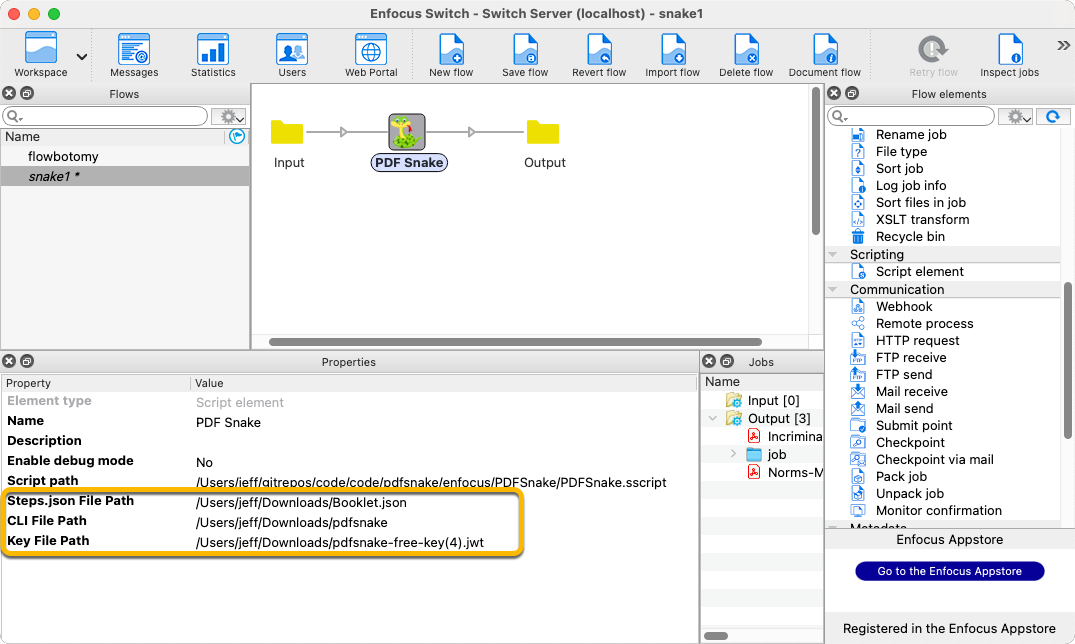
Properties
- Steps.json File Path
- Choose the imposing steps that you downloaded in step 4.
- CLI File Path
- Choose the PDF Snake command-line tool you downloaded in step 2.
- Key File Path
- Choose the free trial key you downloaded in step 1.
4: Two methods to pass imposing steps to PDF Snake
Method A: via a property
As in Step 3 above, choose the imposing steps file for the property Steps.json File Path. One limitation of this solution is that the imposition steps cannot vary between jobs.
Method B: via a folder
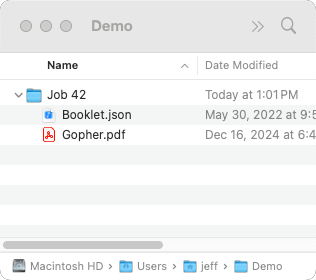
Leave Steps.json File Path blank. Then, instead of dropping files into the input folder, drop a folder containing both a Steps.json file and the documents to be imposed. PDF Snake will apply the steps listed in Steps.json to the documents in the same folder. The benefit of this solution is that the imposition steps can vary between jobs.